How to uninstall or remove Kaspersky totally?

To uninstall or remove Kaspersky form your computer, generally you follow standard methods i.e. you uninstall or remove it from control panel's Add or Remove Programs. But the great regret that it's unable to remove or uninstall Kaspersky totally from your computer. There are some files still existed to your computer which changes the registry of your computer. The standard method couldn't able to change or remove those enteritis. Moreover, some files still exist on your computer and the standard method is unable to uninstall those files from your computer.
Many users of Kaspersky antivirus or Internet security users or workstation users are facing problems during the uninstallation process. Most of the cases, they are trying a lot to remove it and reinstall it or reinstall another type of antivirus. This page will tell you the process to completely remove or uninstall Kaspersky antivirus. The techniques which will be followed will be applicable for the following products of Kaspersky:
- Kaspersky Anti-Virus 6.0\7.0\2009
- Kaspersky Internet Security 6.0\7.0\2009
- Kaspersky Anti-Virus 6.0 for Windows Workstations
- Kaspersky Anti-Virus 6.0 for Windows Servers
The best technique to remove or uninstall Kaspersky totally form your computer is presented in this page. To uninstall or remove Kaspersky totally we will use Kaspersky removal tool. It's best to uninstall Kaspersky totally from your computer. Please follow the following steps to uninstall or remove Kaspersky totally from your computer:
Step 01: Download the removal tool
Download Kaspesky virus removal tool by following link:
Download Kaspersky Removal Tool
After finished downloading you will see an archieve file be downloaded which is look like kavremover9.zip. Unzip it by using any software.
Step 2: Restart your computer
The best way to uninstall Kaspersky is in Windows safe mode. You can uninstall it normal Windows mode. But I prefer to uninstall it from Windows safe mode. So, restart your comuter and enter windows safe mode.
Step 3: Run kavremover9.exe
Double click on kavremover9.exe and a window will be opened. You will see some code and a white box. Enter the visible code to the white box and click on Remove button. Now, Kaspersky will be uninstalled and after uninstalling Kaspersky, restar your computer and start Windows normally.
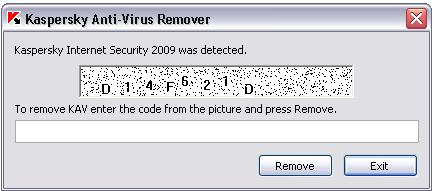
I think, by follwoing the above steps, you can easily remove or uninstall Kapersky antiviurs totally from your computer.
Last line solution to uninstall or remove Kaspersky product
Sometimes, it seems that the above mentioned steps are failed to uninstall Kaspersky. This time you have to go through different steps to uninstall or remove Kaspersky. But before that make sure yourself that Kaspersky is not uninstalled completely from your computer or some files still exist on your computer. In this case, you have to uninstall it form the command prompt window. You need tor run the following command:
kavremover9.exe your_installed_product
Here, your_installed_product = [kav6 | kav7 | kav2009 | kav2009x64| kis6 | kis7 | kis2009 | kis2009x64 | kav6fs | kav6wks]
For example, if you are using, Kasper Internet Security 2009 in your 64bit computer then runt the command:
kavremover9.exe kav2009x64
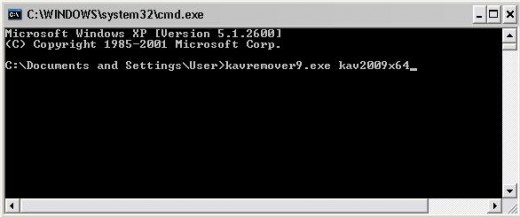
I think, you are successfully remove Kaspersky form your computer. If you have any difficulties to uninstall you may ask or tell it in the comment section. Hope, you successfully remove Kaspersky.
© Written by rancidTaste
If you are enjoyed this post, please consider to give a thumbs up and leave a comment. You may Subscribe to rancidTaste's RSS feed to get new pages which will be delivered to your feed reader. You can also read more hubs by rancidTaste.
JOIN HUBPAGES & ENJOY WORLD'S BEST WRITINGS.
![Symantec Norton Security Premium – 10 Devices – 1 Year Subscription [PC/Mac/Mobile Key Card]](https://m.media-amazon.com/images/I/51+FgVavEzL._SL160_.jpg)
![[Fix] Kaspersky Error: “Digital Signature of Installation Files Missing”](https://images.saymedia-content.com/.image/t_share/MTc2MjYyMjc4MjA5ODczMDY5/fix-kaspersky-error-digital-signature-of-installation-files-missing.png "[Fix] Kaspersky Error: “Digital Signature of Installation Files Missing”")

![How to Remove Kaspersky Password Protection? [Easily Recover]](https://images.saymedia-content.com/.image/t_share/MTc2Mjk3NDcwOTAzNTkyMTI2/how-to-remove-kaspersky-password-protected-easily-recover.png "How to Remove Kaspersky Password Protection? [Easily Recover]")