Install Ubuntu as a dual-boot with Windows without partitioning: How to Install Ubuntu without Any Partitioning.

By rancidTaste
You may install Ubuntu operating system on your computer without any partitioning of your hard disk. These is a way by which you can install Ubuntu as a dual-boot with Windows without any partitioning. If you install Ubuntu in this way, you don't have to worry about partitioning. Many Windows user fear to partition their hard disk but wish to use Ubuntu. But they fear to partition and data loss. But you don't need to fear about data loss. Ubutunt offers you a great way to install Ubuntu in your computer beside Windows operating system. Moreover, you may delete Ubuntu form your computer easily. You just uninstall Ubuntu and that's all. This page provides you the information about installing Ubuntu as a dual-boot with Windows without partitioning.
Steps to install Ubuntu as a dual-boot with Windows without partitioning
Follow the following steps to install Ubuntu as a dual-boot with Windows without partitioning:
At first, insert Ubuntu CD/DVD in your computer CD/DVD ROM. Now, the cd will be automatically run. If you don't find that pop-up window or the CD does not run automatically, find the autorun file on the CD through Microsoft Windows Explorer and double-click on autorun.
You will see the Ubuntu CD Menu with three options. Choose the option Install inside Windows.
Now, you have to select a drive which has much space to install Ubuntu. For example, you want to install in C drive as in a folder. So, you have to select and fill several fields. Change the following things to setup Ubuntu:
- Select the drive from Installation Drive drop-down menu to install Ubuntu.
- Select the disk size to install Ubuntu by selecting the Installation Size drop-down menu.
- Select the Language as you like to install Ubuntu on your computer from the Language drop-down menu.
- Give the username and password by which you want to login your computer in the Username and Password field.
After finishing the above steps, click on Install button.
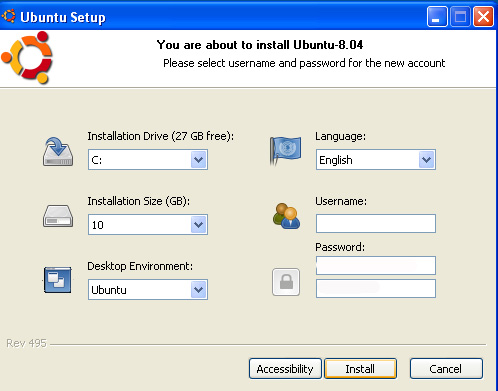
Very soon Ubuntu installation will be started. It may take 7 to 20 minutes to install Ubuntu on your computer.
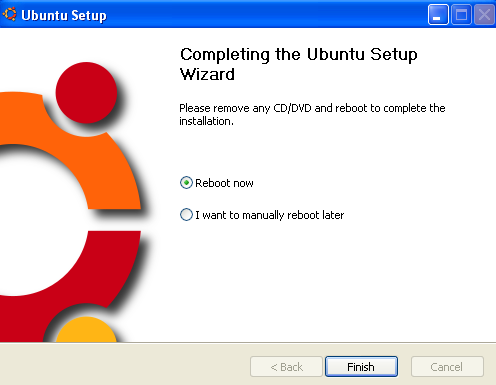
After finished installing, a window will appeared which will confirmed you that Ubuntu installation is completed. Now, it needs restart to your computer. Click Reboot now and then click on Finish button.
At last the Ubuntu CD will be ejected automatically and you will see the dual-boot menu. You will see like the following menu:
Please select the operating system to start:
Microsoft Windows XP Professional
Ubuntu
Use the up and down arrow keys to move the highlight to your choice. Press ENTER to choose.
For troubleshooting and advanced startup options for Windows, press F8.
Choose Ubuntu from there and very soon Ubuntu will start. Now, login to your computer by using username and password.
That's all. In this way, you can easily install Ubuntu as a dual-boot with Windows without partitioning .
rancidTaste's Recent Pages
- Drawing a line: How to draw a line using HTML 5?
HTML5 canvas API provides basics tools and great supports to draw and style different types of sub paths including lines, arcs, Quadratic curves, and Bezier curves, as well as a means for creating paths by connecting sub paths. - 5 days ago
- SEO Pages
SEO, Search Engine Optimization and Keywords - these common three terms are the brainstorming terms for any content publisher, seo company, seo service provider, seo researcher, seo firm, seo consultant, seo professional or other seo lover. - 3 months ago
- WordPress.org vs. WordPress.com: An explained comparison between WordPress.org an WordPress.com
WordPress is a common name but do you know that there are two things: WordPress. - 3 months ago
- Creating database from cpanel: How to create a database from cpanel hosting?
A step by step full tutorial to create a database from cpanel hosting account for any dynamic website. - 3 months ago
- Natural Join in Database: Retrieving records from more than one table with Natural Joins
Natural Join is one of the sql joining. - 3 months ago
- Explanation of SQL Join: Obtaining data from multiple tables using Join
Explanation of SQL Join: Obtaining data from multiple tables using Join. - 3 months ago
- How to solve "CreateFile error 32 when trying set file time" Error During Oracle Installation
Solution of the Oracle installation problem on Windows 7 / Windows XP during Oracle installation start-up. - 3 months ago
- A Brief Explanation of SQL Statements and Classification
Any type of database is based on several statements. - 3 months ago
blog's Recent Pages
- Hover Peek-a-boo Blogger Navbar: How to Hide Blogger Navbar and Make It Visible When You Place the Mouse Cursor on It?
The Blogger Navbar appears by default at the top of every Blogger-powered blog. - 2 years ago
- Remove or Hide the Blogger Navbar: How to Remove or Hide Blogger Navbar?
The Blogger Navbar appears by default at the top of every Blogger-powered blog. - 2 years ago
- Change the Color of Blogger Navbar: How to Change the Color of Blogger Navbar?
The Blogger Navbar appears by default at the top of every Blogger-powered blog. - 2 years ago
- Blogger Navbar: What Is Blogger Navbar And It's Advantages and Disadvantages
Blogger Navbar appears at the top of every blogger by default. - 2 years ago
- Adding "Top of Page" Icon Link: How to Add "Top of Page" Icon Link on Your Blog or Website
Many of the websites or blogs posts have a small text or image floating at the bottom-right or bottom-left or bottom-center. - 2 years ago
- Adding "Top of Page" Text Link: How to Add "Top of Page" Text Link on Your Blog or Website
Many of the websites or blogs posts have a small text or image floating at the bottom-right or bottom-left or bottom-center. - 2 years ago
- Adding Signature to Blogger Posts: How to Add a Signature under Your Blogger Posts?
You can easily add your own custom signature to your blogger posts. - 2 years ago
- Blogger Falling Rectangles : How to Add Falling Rectangles to Blogger?
You can add falling objects like small rectangles, circles, stars etc. - 2 years ago


Philipo 2 years ago
Very informative. Will check it out.