Make Bing Your Default Search Engine: How to Make Bing Your Default Search Engine

Bing (formerly Live Search, Windows Live Search, and MSN Search) is a search engine by Microsoft. It published just the starting of June '09. Within few weeks, Bing was successful in gaining several market share. Many people already using Bing and it becomes much popular besides Google. This page provides you the information to make Bing as your browser's default search engine.
Note: The instructions of this page support Internet Explorer, Mozilla Firefox, Google Chrome Safari and Opera browsers.
Internet Explorer: Make Bing Your Default Search Engine in Internet Explorer
If you are using Internet Explorer then you can easily get make Bing as your default search engine by installing a add-ons. Follow the following steps to make Bing as the default search engine of your Internet Explorer browser:
- Firstly, download and install the add-on by clicking here [Bing add-on].
- A pop-up window will be appeared and click on Add Provider button.
- Now, click on Tools and then Internet Options.
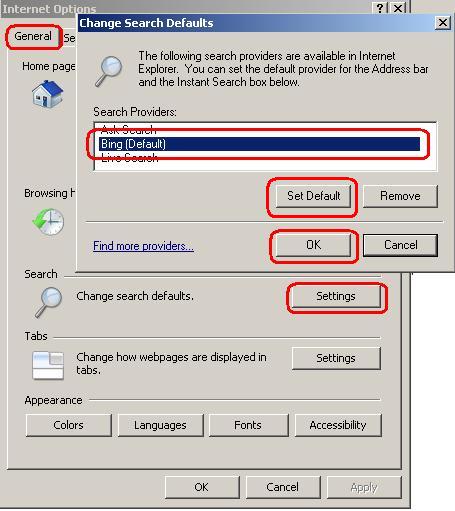
- Internet Options window will be opened and click on General tab. Under general tab, select Settings under Search.
- Now, Change Search Defaults window will be appeared. Select Bing and click on Set Default button and then click OK button
And that's all. Search anything by typing in the address bar of Internet Explorer. You will see that the search is done through Bing.
Mozilla Firefox: Make Bing Your Default Search Engine for Mozilla Firefox
Follow the following to make Bing as the default search engine of Firefox browser:
- Open Firefox browser and type about:config in the address bar and hit Enter key of your keyboard.
- Click on the button I'll be careful, I promise!
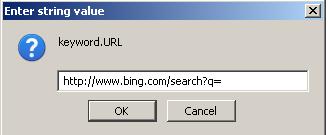
- Type keyword.url in the filter and double click on "keyword.URL."
- Now, type the following line in the text box and click on OK button.
http://www.bing.com/search?q=
That's all. Now, search anything in Firefox browser's address bar and hit Enter key. Now, all the search is down through Bing.
Google Chrome: Make Bing Your Default Search Engine for Google Chrome
Follow the following steps to make Bing as the default search engine for Google Chrome:
- Open Google Chrome and click on the wrench icon and click on Options.
- Select the Basic tab and click on Manage under Default serach section.
- A new window will be appeared and click on Add.
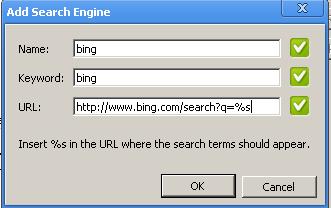
- Now another window will be appeared with three fields like Name, Keyword and URL. You have to set the values in these field. Set the following values for those three fields and click on OK button :
Name: Bing
Keyword: bing
URL: http://www.bing.com/search?q=%s
5. At last, select Bing and click on the button Make Default.
And that's all. Now Bing is the default search engine of Google Chrome browser.
Safari: Make Bing Your Default Search Engine for Safari
You can easily change your search engines in Safari by using the Glims plugin. This is a great software which adds a number of features to Safari. Follow the following steps to make Bing as the default search engine for your Safari browser:
- At first install Glims plug-in [Glims plug-in link]. After installing, open Safari Preferences and click on Search Engines under Glims tab.
- Now, click on Add button for adding a new search engine.
- A pop-up box will be appeared and fill the following information:
Name: Bing
Type: Search Engine
URL: http://www.bing.com/search?q=#query#
4. Click on Set and close the window.
5. Finally, select Bing in the Safari browser window search box.
That's all. Bing is now the default browser of your Safari browser.
Opera: Make Bing Your Default Search Engine in Opera
If you are using Opera and are looking to add Bing as default search engine in Opera, then follow the following steps to make Bing as the default search engine in Opera browser:
- Right-click in the site’s search field.
- Select Manage Search Engines.
- Click Add and give the following information:
Name: Bing
Keyword: Bing
Address: http://www.bing.com/search?q=%s&go=&form=QBLH&scope=web
4. Do select the option use as default search to make Bing as your default search engine.
And that's all. Now, Bing is the default search engine of Opera browser.
By following the above steps you can easily set Bing as the default search engine in Internet Explorer, Firefox, Google Chrome, Safari and Opera browsers. If you face any difficulties or problems during the time of making Bing of your browser's default search engine, feel free to ask in the comment section. I will try my best to solve your problem.
© Written by rancidTaste